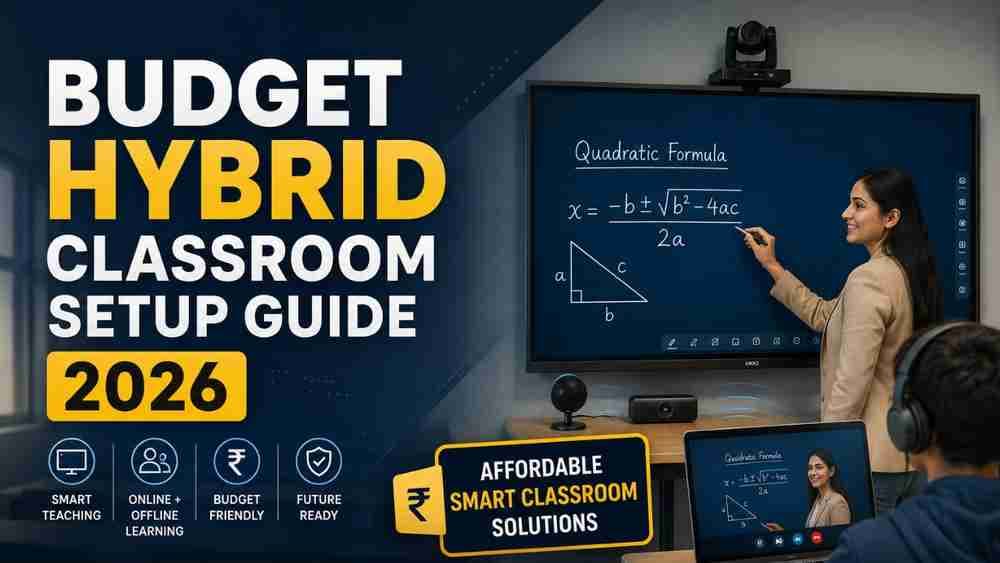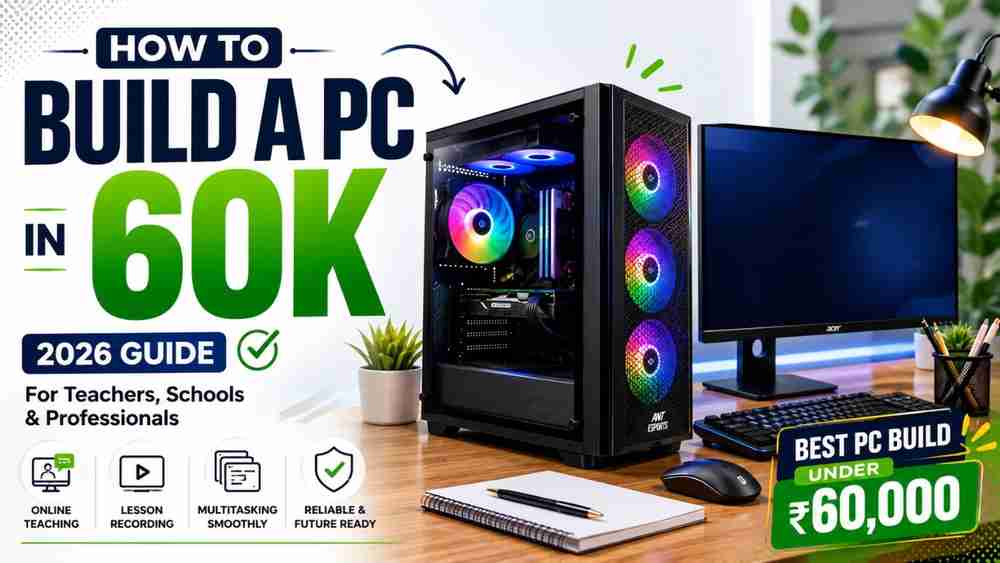
In 2026, the landscape of education has transformed dramatically. Whether you are leading a hybrid classroom, conducting global online tutoring sessions, or recording educational YouTube videos, your computer is the heart of your digital classroom. A laggy, unresponsive computer not only disrupts your workflow but also breaks the engagement of your students. That is exactly why knowing how to build a PC in 60K is one of the most valuable tech skills for modern educators.
As digital teaching, AI-powered education tools, and smart classrooms become the standard, educators need robust computing power. You need a machine that can flawlessly handle OBS Studio for recording, run multiple 4K displays or Interactive Flat Panels, manage 30+ Google Chrome tabs, and run heavy video conferencing software—all at the same time.
If you have been searching for the best computer for online teaching, you might be tempted to buy an expensive pre-built machine. However, this guide will show you how putting together a budget PC setup 2026 will give you maximum performance, better longevity, and incredible value for your money.
Why Teachers Should Build a Custom PC Instead of Buying a Laptop
Before we dive into the parts, a common question arises: Should I just buy a laptop? While laptops offer portability, a desktop PC is the undisputed champion for a dedicated online teaching setup. Here is why a custom PC under ₹60,000 beats a laptop at the same price point:
- Better Performance for the Price: Desktop processors and components are larger and more powerful than their laptop counterparts. A ₹60,000 desktop will easily outperform an ₹80,000 laptop.
- Superior Cooling: Laptops overheat during long Zoom sessions or while rendering recorded lectures. Desktops have massive fans and better airflow, ensuring they stay cool and fast all day long.
- Easier Upgrades: Need more storage for your video lectures? Want to add more RAM for multitasking? With a desktop, you just plug in a new part. With a laptop, you often have to buy a whole new machine.
- Larger Screen Support: Desktops easily connect to multiple large monitors or an Interactive Flat Panel, giving you the screen real estate you need to see your students, read your chat, and share your screen simultaneously.
- Lower Long-Term Cost: Because you can replace individual parts if they fail or become outdated, a custom desktop has a significantly longer lifespan.
Complete ₹60,000 PC Build
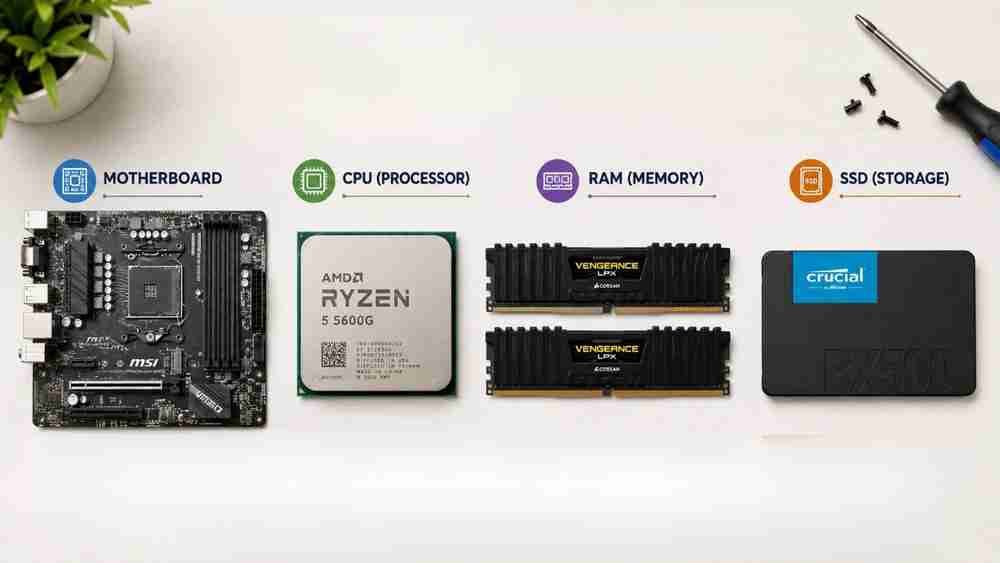
Here is the ultimate blueprint for the best PC build under 60000 in 2026. This build relies on powerful integrated graphics, eliminating the need for an expensive dedicated graphics card, thereby saving money for high-quality accessories like monitors and webcams.
Component | Recommendation | Estimated Price (₹) | Why it’s Ideal for Educators |
|---|---|---|---|
Processor (CPU) | AMD Ryzen 5 8600G (with Radeon 760M Graphics) | ₹18,500 | The best processor for teachers. It handles heavy multitasking and features powerful integrated graphics for video editing and smart board software. |
Motherboard | MSI PRO B650M-P | ₹10,500 | A stable, future-proof motherboard that supports the latest DDR5 memory and offers plenty of USB ports for your teaching accessories. |
RAM (Memory) | 16GB (1x16GB or 2x8GB) DDR5 5200MHz | ₹4,500 | Gives you the headroom to keep dozens of browser tabs open alongside your video conferencing apps without freezing. |
Storage (SSD) | 1TB Crucial P3 Plus NVMe Gen4 | ₹5,500 | Ultra-fast storage that boots up your PC in seconds. 1TB is plenty of space for years of recorded lectures, PDFs, and presentations. |
Power Supply (PSU) | Deepcool PK550D 550W 80+ Bronze | ₹3,500 | Provides safe, reliable, and consistent power to your components. Never cheap out on the PSU! |
Cabinet/Case | Ant Esports ICE-112G (or similar budget mesh case) | ₹3,000 | Offers great airflow to keep components cool during long 8-hour teaching days. |
Monitor | Acer or BenQ 24-inch 100Hz IPS Monitor | ₹7,500 | An IPS panel offers excellent color accuracy and wider viewing angles, reducing eye strain during long working hours. |
Webcam | Lenovo 300 FHD Webcam | ₹2,500 | Crisp 1080p video quality ensures your students can see you clearly. |
Keyboard & Mouse | Logitech MK275 Wireless Combo | ₹1,500 | A reliable, clutter-free wireless setup for a clean teaching desk. |
UPS | APC 600VA UPS | ₹3,000 | Essential in India to protect your PC from power cuts and give you time to save your work. |
Total Estimated | ~₹60,000 | Prices may vary slightly based on offline/online retail availability. |
This parts list forms the foundation of a phenomenal budget productivity PC that includes everything you need right out of the box.
How This PC Helps Teachers
Once built, this smart classroom computer will revolutionize the way you work. Here are real-world applications of this powerhouse:
- Flawless Video Conferencing: As the ideal PC for Zoom and Google Meet (as well as Microsoft Teams), this build ensures you will never experience robotic audio or frozen video caused by an overworked processor.
- Interactive Flat Panels & Smart Boards: If your school uses large smart boards, this PC seamlessly connects via HDMI or DisplayPort, running demanding Interactive Flat Panel software without a hiccup.
- Content Creation & Video Editing: If you are an educational YouTuber, this is a fantastic PC for content creation. The Ryzen processor will breeze through basic rendering in Adobe Premiere Pro or DaVinci Resolve.
- Lesson Recording: Running OBS Studio to capture your screen, webcam, and audio simultaneously can crush a weak laptop. This setup handles it effortlessly, making it the best PC for lesson recording.
- Productivity & Planning: Whether you are doing heavy PDF editing, managing massive Excel spreadsheets for student grades, or creating beautiful interactive slides, this is the best PC for Microsoft Office and Canva design.
- AI Tool Integration: Utilizing AI tools like ChatGPT, Microsoft Copilot, or Canva’s Magic Studio requires a snappy browser experience. With 16GB of DDR5 RAM, generating AI lesson plans takes mere seconds.
Performance Expectations
When you invest in a budget PC for educators, you want to know exactly how it will handle your daily stress tests. Here is what you can expect from this ₹60K build:
- Web Browsing: 30+ Google Chrome tabs open simultaneously (including YouTube, Canvas/Blackboard, Google Drive, and Wikipedia) with zero lag.
- Multitasking: Running Zoom (with screen share active), a heavy PowerPoint presentation, and background lesson recording smoothly at the same time.
- Video Editing: Editing 1080p and basic 4K educational videos in Premiere Pro with smooth timeline playback.
- Light Gaming/Entertainment: After a long day of teaching, this PC can easily handle light to medium gaming (like Minecraft, Valorant, or GTA V) thanks to its robust integrated graphics.
Step-by-Step PC Building Guide
If you are intimidated by a DIY PC build India, don't be. Building a PC is essentially "Lego for adults." Here are the beginner-friendly steps to assemble your PC build for schools:
- Prepare Your Workspace: Find a clean, large table. Keep a magnetic Phillips-head screwdriver handy. Ground yourself by touching a metal object to discharge static electricity.
- Install the CPU: Place the motherboard on its cardboard box. Lift the CPU socket retention arm. Gently align the golden triangle on the Ryzen CPU with the triangle on the socket. Drop it in—do not push—and lock the arm down.
- Install the RAM: Find the RAM slots on the motherboard. Push down the clips on the sides. Line up the notch on the RAM stick with the slot and push down firmly until it "clicks" into place.
- Install the NV Me SSD: Locate the tiny M.2 slot on the motherboard. Insert the SSD at a 30-degree angle, press it down flat, and secure it with the tiny screw provided in your motherboard box.
- Mount the Cooler: The Ryzen CPU comes with a stock cooler in the box. Place it over the CPU and screw it into the motherboard in a crisscross pattern. Plug the cooler's fan cable into the "CPU_FAN" header on the board.
- Prepare the Cabinet: Open the side panels of your computer case. Install the motherboard standoff screws if they aren't pre-installed. Insert the motherboard's metal I/O shield into the back of the case.
- Install the Motherboard: Gently place the motherboard into the case, aligning it with the standoffs. Secure it with screws.
- Install the Power Supply (PSU): Slide the PSU into the bottom chamber of the case and screw it in from the back.
- Connect the Cables: Route the thick 24-pin power cable to the right side of the motherboard, and the 8-pin CPU power cable to the top left. Connect your case fans, front panel USBs, and power button cables to the bottom of the motherboard.
- Boot It Up: Plug your monitor into the motherboard's HDMI port, connect your keyboard and mouse, and turn it on. If everything lights up, congratulations—you have successfully completed your build! Next, install Windows via a USB drive.
Essential Software Every Teacher Should Install
A great PC for teachers is nothing without the right software. Make sure to load your new machine with these essentials:
- Microsoft Office 365 / Google Workspace: The backbone of digital teaching for Word docs, Excel grade books, and PowerPoint slides.
- Zoom / Google Meet / Microsoft Teams: Download the dedicated desktop applications for these platforms rather than using browser versions for better performance and features.
- OBS Studio: A free, powerful tool for recording your screen, webcam, and audio to create asynchronous video lectures.
- Canva: Excellent for creating visually appealing worksheets, classroom posters, and presentation slides.
- Adobe Acrobat or Foxit Reader: Essential for reading, annotating, and editing PDF assignments.
- VLC Media Player: The most reliable media player for showing educational videos offline.
- AI Assistants: Bookmark ChatGPT, Microsoft Copilot, or Claude to assist with drafting emails, generating quiz questions, and planning curriculum.
Accessories Every Teacher Should Buy
To unlock the full potential of your video conferencing PC, consider upgrading your peripherals over time:
- PTZ Camera (Pan-Tilt-Zoom): If you are setting up a hybrid classroom, a PTZ camera allows you to track movement across the room, providing remote students with a premium viewing experience.
- Noise-Cancelling Microphone: An external USB mic (like a Blue Yeti or Fifine) ensures your voice is broadcasted with radio-like clarity, minimizing background household or classroom noise.
- Second Monitor: Having two screens changes the game. You can present your slides on one screen while monitoring student faces and chat on the other.
- External SSD: A portable SSD to carry massive video files securely between your home PC and school campus.
- Wireless Presenter (Clicker): Walk around your classroom freely while advancing your slides remotely.
- Mechanical Keyboard (Optional): Provides excellent tactile feedback for teachers who type thousands of words a day.
Common Mistakes to Avoid
When putting together your budget PC setup 2026, avoid these costly errors:
- Buying a Low-Quality Power Supply (PSU): Never buy an unbranded PSU. A cheap power supply can short-circuit and destroy your entire ₹60,000 investment. Stick to 80+ Bronze certified units from reputed brands.
- Too Little RAM: 8GB of RAM is obsolete in 2026. For a smooth teaching experience, 16GB is the absolute minimum requirement.
- Small Storage: A 256GB SSD will fill up in a matter of weeks if you are saving recorded lectures. Always opt for at least 1TB of NVMe SSD storage.
- Poor Airflow: Don’t shove your PC cabinet into a tight, enclosed desk drawer. Your PC needs to breathe to stay cool.
- Skipping Backups: Always utilize cloud storage (Google Drive/OneDrive) or external hard drives. Hardware can fail, and you cannot afford to lose your lesson plans.
- Ignoring Windows Updates: Regular updates protect your computer from malware and ensure compatibility with the latest teaching software.
Who Should Build This ₹60K PC?
This specific system is engineered to be the ultimate PC for teachers and beyond. You should absolutely build this if you fall into any of these categories:
- School Teachers & College Professors looking for a reliable home-office machine.
- Online Tutors conducting daily global classes over video calls.
- Coaching Institutes needing powerful desktop stations for their faculty.
- Educational YouTubers & Content Creators who need to record and edit videos without lag.
- School Administrators upgrading school computer labs or smart classrooms with future-proof hardware.
Frequently Asked Questions (FAQs)
Is ₹60,000 enough for a teaching PC?
Yes, absolutely. A ₹60,000 budget allows you to build an incredibly fast, highly capable desktop that includes your monitor and peripherals. It is the sweet spot for an online teaching setup that balances cost and high performance.
Laptop or desktop for teachers?
If you travel constantly from class to class, a laptop is necessary. However, for a dedicated home office, online tutoring desk, or a fixed smart classroom, a desktop is far superior in terms of cooling, screen size, ergonomics, and lifespan.
Which processor is best for online classes?
Processors like the AMD Ryzen 5 8600G, Ryzen 5 7600, or Intel Core i5 (12th/13th Gen) are phenomenal. They offer 6 to 10 cores, easily managing heavy browser usage and video encoding simultaneously.
Can this PC edit educational videos?
Yes! The integrated graphics on modern processors (like the Radeon 760M) are more than capable of handling 1080p and basic 4K video editing in software like Premiere Pro, Filmora, or DaVinci Resolve.
Can it connect to an Interactive Flat Panel?
Definitely. The motherboard recommended in this build features HDMI and DisplayPort outputs that plug directly into any modern Interactive Flat Panel, making it an excellent smart classroom computer.
Is 16GB RAM enough?
For teaching, lesson planning, and running virtual meetings, 16GB of DDR5 RAM is the perfect amount for 2026. It ensures your PC won't freeze when you have multiple heavy applications open at once.
How long will this PC last?
A well-maintained custom desktop built with these modern specifications will easily last 5 to 7 years before needing any major upgrades.
Can it handle AI tools?
Yes. Web-based AI tools like ChatGPT or Canva Magic Studio rely heavily on your browser performance. With a fast processor and ample RAM, this PC handles AI generation effortlessly.
Can teachers build a PC themselves?
Absolutely! Building a PC requires no soldering or advanced technical skills. It is mostly a process of plugging standard cables into standard slots and tightening a few screws.
Conclusion
Understanding How to Build a PC in 60K is a game-changer for educators. Rather than settling for an overpriced, underperforming laptop, a custom-built desktop provides the ultimate balance of speed, durability, and value. This ₹60,000 build serves as the best computer for online teaching, a powerful PC for content creation, and a reliable hub for modern smart classrooms. By investing in the right CPU, ample RAM, and fast storage, you are securing a tool that will elevate your productivity, streamline your lesson planning, and allow you to deliver uninterrupted, high-quality education to your students for years to come.
Are you looking to modernize your educational institution? From high-performance PCs to complete digital transformations, we have you covered. Contact Edumark Technologies today for complete classroom technology solutions, including Interactive Flat Panels, PTZ Cameras, Video Conference Room Setup, Digital Classrooms, and Smart Classroom Consultation! Let us help you build the future of education.