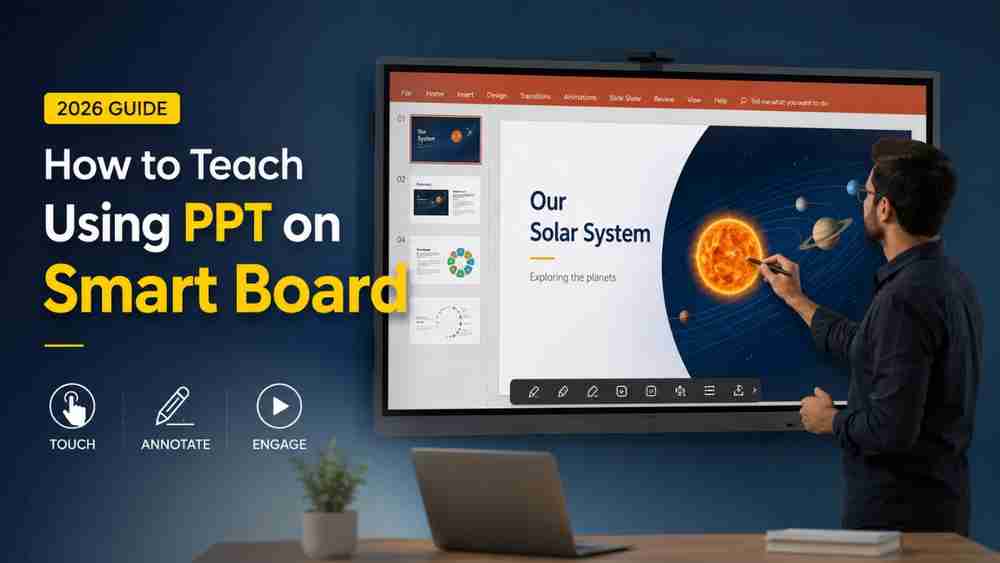
PowerPoint presentations have become one of the most effective teaching tools in today's digital classrooms. Whether you're teaching in a school, college, coaching institute, or conducting online classes, a well-designed presentation helps explain concepts clearly and keeps students engaged.
However, the real transformation happens when PowerPoint is used with an Interactive Smart Board instead of a traditional projector. A Smart Board allows teachers to write directly on slides, play multimedia content, zoom into diagrams, and interact with students using touch gestures. This creates a more engaging and collaborative learning experience.
In this complete guide, you'll learn how to teach on PPT in Smart Board, how to use PowerPoint on Smart Board effectively, the advantages of Windows and Android Smart Boards, the role of an OPS module, and practical teaching tips to make every lesson more interactive.
What is a Smart Board?
A Smart Board, also known as an Interactive Flat Panel (IFP), is a large touch-enabled display that combines the functionality of a whiteboard, projector, computer, and digital collaboration tool into a single device.
Unlike traditional projectors, Smart Boards offer:
- Crystal-clear 4K display
- Multi-touch support
- Digital writing and annotation
- Built-in whiteboard software
- Wireless screen sharing
- Internet connectivity
- Interactive teaching tools
Smart Board vs Traditional Projector
Smart Board | Traditional Projector |
Touch-enabled | No touch support |
4K display | Lower image quality |
Interactive learning | Passive teaching |
Digital annotation | Requires separate whiteboard |
Long lifespan | Lamp replacement required |
Better classroom engagement | Limited interaction |
This is why Smart Boards have become the preferred choice for modern classrooms.
Why Use PowerPoint on a Smart Board?
Teaching with PowerPoint on a Smart Board offers several advantages over conventional classroom methods.
Better Student Engagement
Interactive slides, videos, diagrams, and animations keep students focused throughout the lesson.
Touch-Enabled Navigation
Teachers can move between slides using simple touch gestures without needing a keyboard or mouse.
Digital Annotation
Write notes, circle important points, underline keywords, and draw diagrams directly on the presentation.
Multimedia Learning
Embed videos, audio, GIFs, and animations to make complex concepts easier to understand.
Easy Lesson Delivery
Organized slides help teachers deliver structured lessons with confidence.
Better Classroom Management
All teaching resources remain in one place, reducing interruptions during lectures.
Step-by-Step Guide: How to Teach on PPT Using a Smart Board
Step 1: Prepare Your PowerPoint Presentation
Create clean, visually appealing slides with:
- Large fonts
- High-quality images
- Charts
- Animations
- Videos
- Important key points
Avoid overcrowding slides with too much text.
Step 2: Turn On the Smart Board
Power on the Interactive Flat Panel and ensure it is connected to the internet if online resources are required.
Step 3: Connect Your PC or Laptop
There are multiple ways to connect your computer:
- HDMI Cable
- USB Type-C
- Wireless Casting
- Screen Sharing Applications
Choose the method that best suits your classroom setup.
Step 4: Open Microsoft PowerPoint
Launch Microsoft PowerPoint from your Windows PC or OPS module and open your presentation.
Step 5: Start Slide Show Mode
Click Slide Show to display your presentation in full-screen mode for a distraction-free teaching experience.
Step 6: Use Touch Gestures
Modern Smart Boards support intuitive touch controls such as:
- Swipe to move between slides
- Pinch to zoom
- Scroll through content
- Multi-touch interaction
These features make presentations feel more natural and interactive.
Step 7: Annotate on Your PPT
One of the biggest advantages of teaching with an Interactive Smart Board is digital annotation.
You can:
- Write explanations
- Highlight important points
- Draw mathematical figures
- Sketch science diagrams
- Save annotated slides for future reference
This creates a more engaging classroom environment.
Step 8: Play Videos Inside PowerPoint
Videos help students understand concepts much faster.
Insert educational videos directly into your presentation and play them without switching applications.
Step 9: Use Interactive Teaching Tools
Most Smart Boards include built-in classroom tools such as:
- Whiteboard Mode
- Timer
- Screenshot Tool
- Split Screen
- Floating Toolbar
These features improve lesson delivery and encourage active participation.
Best PowerPoint Tips for Teachers
To create effective Smart Board PPT presentations:
- Keep slides simple and clean.
- Use high-quality visuals.
- Choose large, readable fonts.
- Limit text on each slide.
- Use animations only when necessary.
- Include educational videos.
- Ask interactive questions during lessons.
- Add quizzes and activities.
- Maintain a consistent design.
A well-designed presentation keeps students interested and improves knowledge retention.
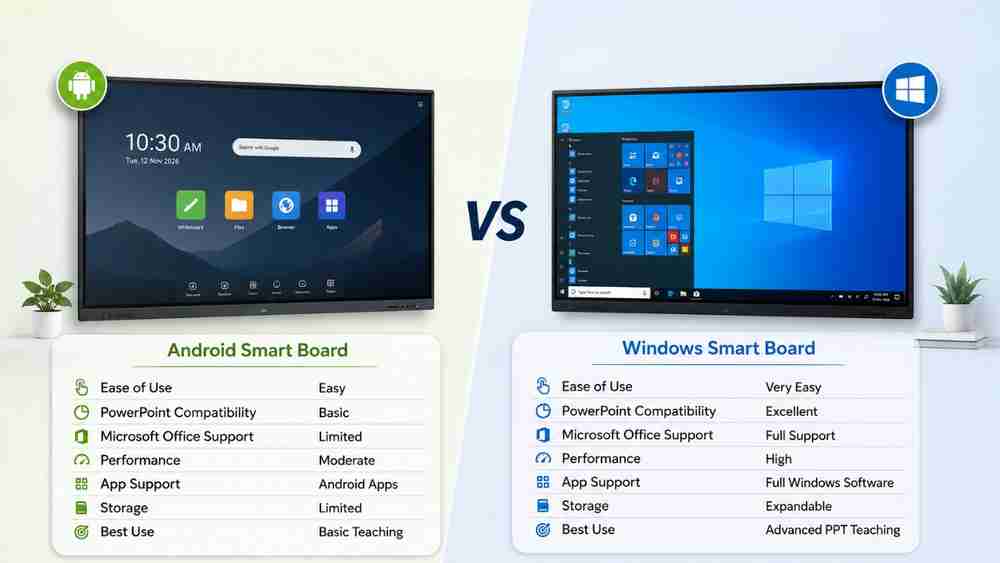
Android Smart Board vs Windows Smart Board for PPT Teaching
Feature | Android Smart Board | Windows Smart Board |
Ease of Use | Easy | Very Easy |
PowerPoint Compatibility | Basic | Excellent |
Microsoft Office Support | Limited | Full Support |
Performance | Moderate | High |
App Support | Android Apps | Full Windows Software |
Storage | Limited | Expandable |
Best Use | Basic Teaching | Advanced PPT Teaching |
If your institution frequently uses Microsoft PowerPoint, a Windows Smart Board provides smoother animations, better compatibility, and improved multitasking.
What is OPS in a Smart Board?
OPS stands for Open Pluggable Specification.
It is a compact Windows computer module that fits directly into the Smart Board. Once installed, it converts an Android Smart Board into a full-featured Windows PC without requiring an external CPU.
Benefits of an OPS Module
- Complete Microsoft Office support
- Smooth PowerPoint animations
- Better multitasking
- Faster overall performance
- Access to all Windows software
- Easy file management
- No external desktop computer required
For schools, colleges, and coaching institutes that rely heavily on PowerPoint presentations, an OPS module is one of the best investments for seamless teaching.
Common Mistakes Teachers Should Avoid
Even experienced educators can reduce the effectiveness of their presentations by making common mistakes.
Avoid:
- Using very small fonts
- Adding too much text
- Using low-quality images
- Reading directly from slides
- Ignoring student participation
- Poor slide layouts
- Forgetting to test videos before class
Instead, focus on interaction, discussion, and visual learning.
Why Schools are Upgrading to Smart Boards in 2026
Education is rapidly becoming more technology-driven. Schools and educational institutions are embracing Smart Boards to align with the vision of NEP 2020, which promotes digital learning and modern teaching methods.
Key reasons include:
- Smart Classroom adoption
- Hybrid education models
- Interactive learning experiences
- AI-enabled teaching tools
- Better student engagement
- Improved learning outcomes
- Future-ready educational infrastructure
Smart Boards are no longer a luxury—they are becoming an essential part of modern education.
Why Choose Edumark Technologies?
When it comes to building a modern digital classroom, Edumark Technologies is a trusted partner for schools, colleges, coaching institutes, universities, and educational organizations across India.
The company offers complete educational technology solutions, including:
- Smart Classroom Setup
- Hybrid Classroom Setup
- Interactive Smart Boards
- 4K PTZ Camera Installation
- Professional Lighting Setup
- Microphone Setup
- High-Performance PC Systems
- School ERP Software
- College ERP Solutions
- Mobile App Development
- Website Development
Beyond products, Edumark Technologies provides expert consultation, professional installation, teacher training, and reliable after-sales support, ensuring institutions can adopt digital teaching with confidence. With Pan India service coverage, the company supports educational organizations across the country.
Contact Edumark Technologies
Ready to transform your classroom into a smart learning environment?
Edumark Technologies
Phone: +91 8002805461
Email: info@edumarktechnologies.com
Website: www.edumarktechnologies.com
Services
- Smart Classroom Setup
- Hybrid Classroom Setup
- Smart Boards
- 4K PTZ Camera
- Lighting Setup
- Professional Microphone Setup
- PC System
- School ERP Software
- College ERP
- Mobile App Development
- Website Development
Support
- Expert Consultation
- Professional Installation
- Teacher Training
- After-Sales Support
Availability: Pan India Service
Whether you're upgrading a single classroom or building a complete digital campus, Edumark Technologies provides end-to-end solutions tailored to your institution's needs.
Conclusion
Learning how to teach on PPT in Smart Board is an essential skill for modern educators. Smart Boards make PowerPoint presentations more interactive by enabling touch navigation, digital annotations, multimedia integration, and real-time collaboration. They help teachers create engaging lessons that improve student understanding and participation.
For institutions that frequently use Microsoft PowerPoint, pairing a Smart Board with an OPS module delivers the full Windows experience, ensuring smooth presentations, better software compatibility, and enhanced productivity.
As digital education continues to evolve in 2026, investing in Smart Classroom technology is a practical step toward creating future-ready learning environments. If you're planning to upgrade your classrooms with Interactive Smart Boards, Hybrid Classroom solutions, ERP software, or complete digital teaching infrastructure, contact Edumark Technologies for expert guidance, professional installation, training, and nationwide support.